How it works
-
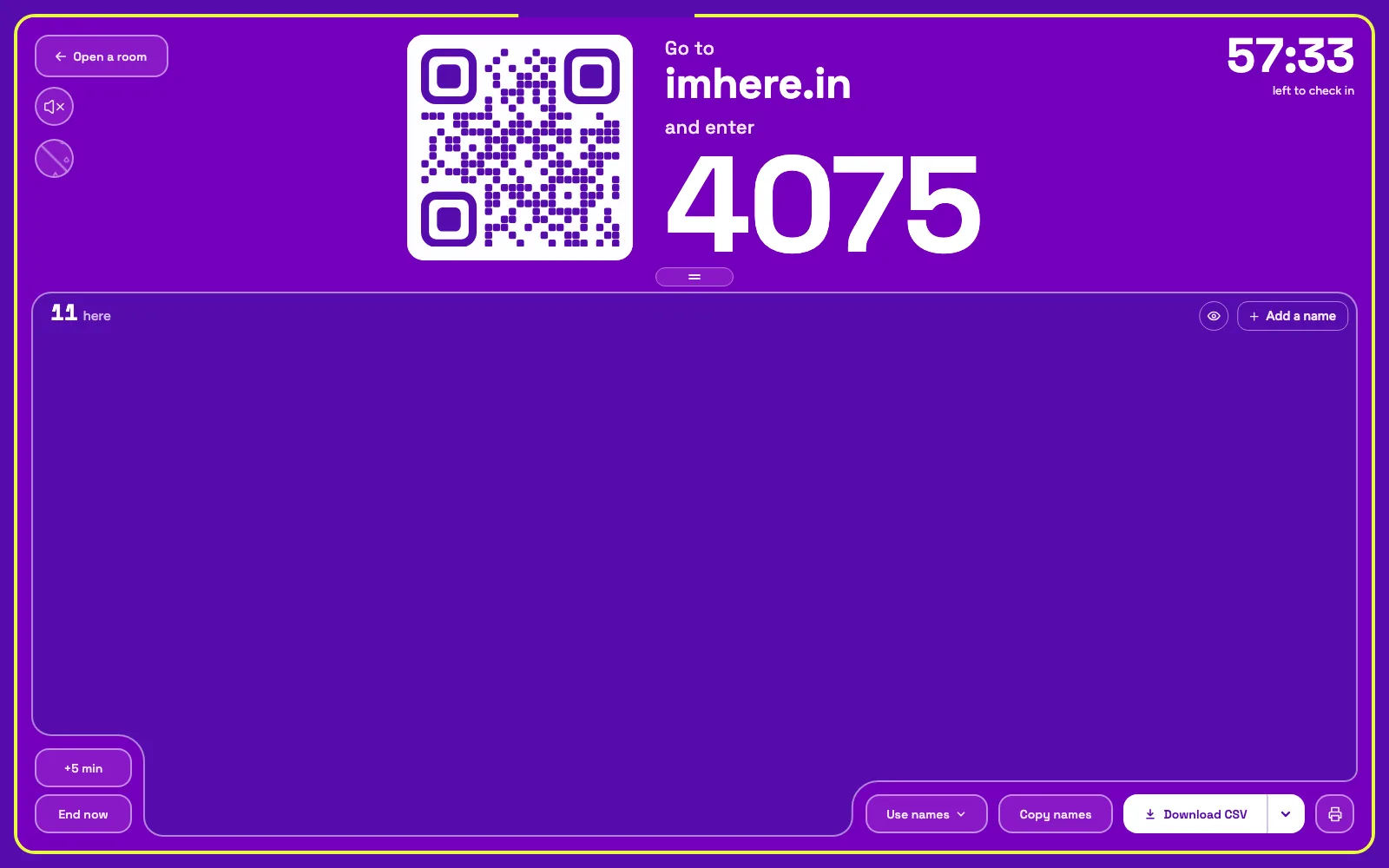
Open a room. Choose how long the check-in stays open, from ten minutes to a full day, and add a check-in question if the record needs one. Display the room with its QR code and PIN on the projector, or on a laptop by the door.
-
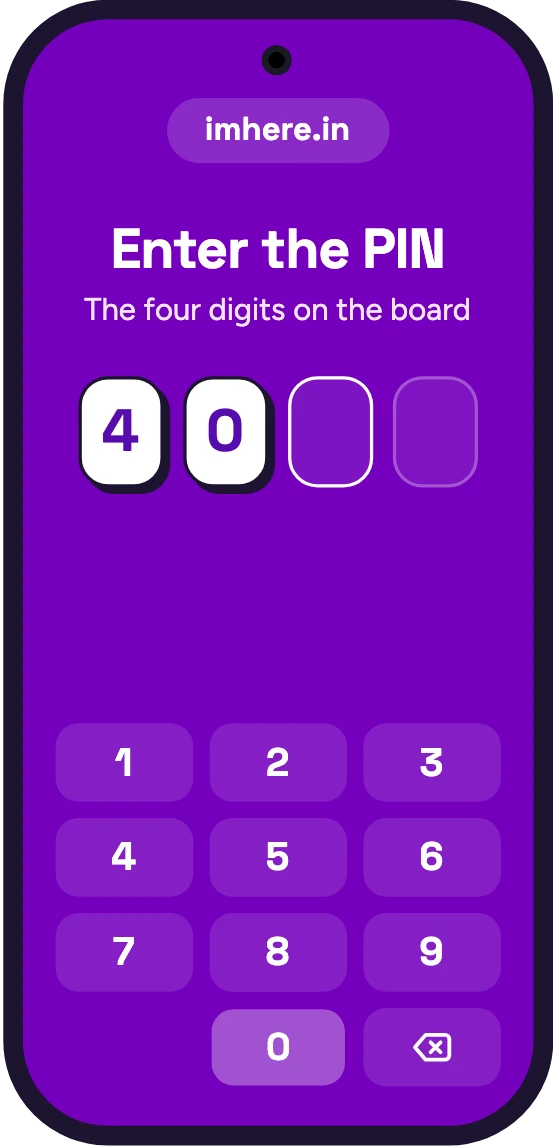
People check in. They scan the code with their phone camera, or go to imhere.in and type the PIN, then add their name. No app download, no account and no company email, allowing contractors and new hires to check in the same way as everyone else.
-
Watch the list build. Names appear on your screen as they arrive, each with its check-in time. The count at the top left of the name area shows how many people are here. A room can hold up to 1,000 names.
-
Hand off the record. Print it or save it as a PDF for your manager, or download a CSV for the training file. When the timer ends, check-in closes itself and the room moves to your history.
Big sessions: We’ve tested for 500 people checking in at the same moment. Everyone can check in at once from their seat, so no need to queue for the pen.
Who was really there
A paper sheet records whoever the writer wants it to. A fixed QR code or a form link works from any location once it's been texted. For trainings that count towards something, turn on Verify presence when you open the room.
Each phone is then checked against your room: the scan of the live QR code on your screen (which changes every few seconds so that a photo of it doesn't pass), and your room's location and its network. Anyone who doesn’t match is still checked in but they're flagged, and you decide what that means.
Nobody is blocked
Someone on mobile data, or whose camera won't scan, might be sitting in the front row. You can mark them as verified yourself, or add a name by hand for someone whose phone died. The names you add are marked as verified.
What it proves
That the phone could see your screen and was in your room. It can't tell who's holding the phone, so the list is a record of phones, not IDs.
How each check works, and what it can’t catch: stopping proxy attendance.
Keeping the record
A room is temporary on purpose. Check-in closes when the timer ends, and the room itself is deleted within 24 hours. The list is yours to keep:
Print or save as PDF
One tap from the board exports the record. It has every name with its check-in time, a ✓ or ✗ per name for Verify presence, a note on any names you manually added, and an end-of-list line with the count and the time it was printed.
Download a CSV
The CSV has names, check-in times, each check's result, and any check-in question answers. It's downloaded to your device in a file that opens in Excel, Numbers, or Google Sheets.
Find it later
Past rooms stay in your room history. Sign in and they're saved to your account, so you can find them on any device.
Ask for what the record needs
Enable a question at check-in for an employee ID, a department, or the email a certificate goes to. Answers live next to each name.
Have a registration list: Paste your list of names in as the room’s roster, and the board shows how many of them are here and who’s still missing.
Compared to paper and a Google Form
| Paper sheet or Google Form | Im Here! | |
|---|---|---|
| Checking in | One pen down the row, or a link to pass around | Everyone at once, from their own phone |
| Times | None on paper. A form stamps each response | A check-in time on every name |
| Signing in a coworker | An extra line, or a forwarded link | Flagged, with Verify presence on |
| Closing check-in | When someone takes the sheet or closes the form | Closes itself when the timer ends |
| Getting it to HR | Type up the sheet, or clean up the responses | Print, PDF or CSV from the board |
Paper still wins when you need a handwritten signature. Print a training sign-in sheet with name, department and signature columns, and use both.
If every check-in needs a full form, or one spreadsheet has to cover the whole year, Google Forms earns its setup time. The longer comparison is on the Google Forms attendance page.
Training attendance FAQ
- Do attendees need an account or an app?
- No. They scan the code with their phone camera, or type the PIN at imhere.in, and add their name. You don't need an account to host either.
- Can I collect an employee ID or department?
- Yes, with the check-in question. Each room can ask one optional question, as a written answer or multiple choice, and every answer sits next to its name in the CSV. Answers never show on the live room you project. You'll find them on the room's results page.
- Can I get a signed sheet?
- Not in the app: a check-in is a typed name and a time, not a signature. If your records need signatures, print a training sign-in sheet from Free tools in our header with a signature column and pass it around as well. The room's printout and CSV give you the check-in times to go with it.
- Someone’s phone died. Can they still be on the list?
- Yes. Add their name by hand from the board. It's marked as added by you, prints as added, and counts as verified.
- How long is the record kept?
- The room closes when its timer ends and is deleted within 24 hours. The list stays in your room history, and in your account if you sign in. To have it in your own files, print it or download the CSV.
- One room per session, or one for the whole day?
- One per session is cleanest: each room is its own list with its own times. For an all-day training, one long room works too, and a short second room near the end shows who stayed.
- Is it free?
- Yes, including Verify presence and the printouts.
Also: QR code attendance, stopping proxy attendance, training sign-in sheet, Google Forms